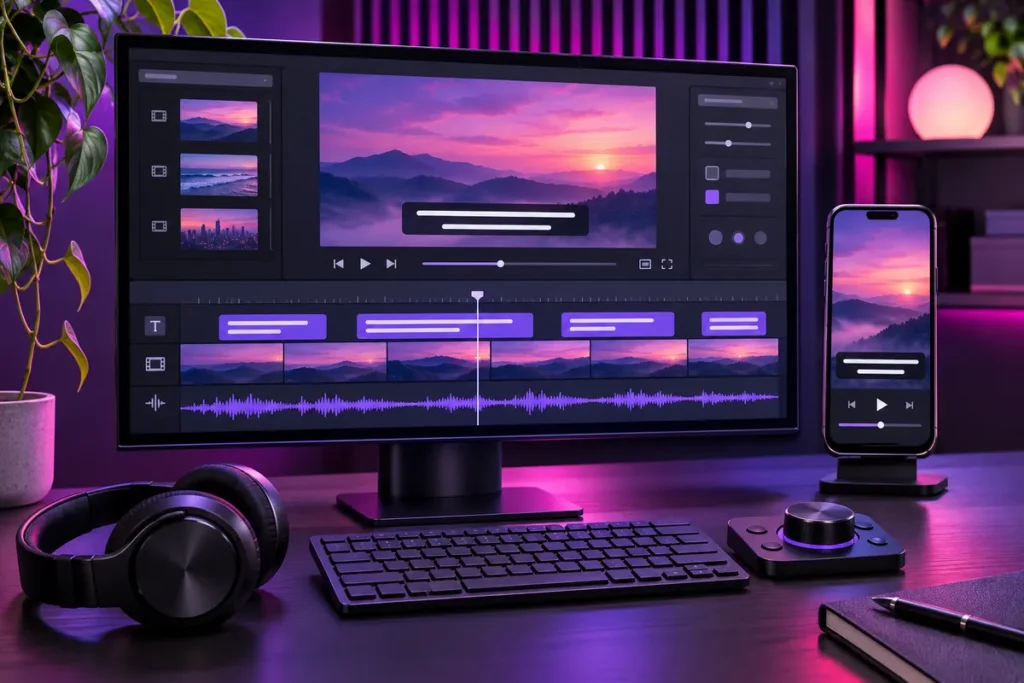
Well-made captions do more than turn speech into words on screen. They help viewers follow a video when sound is unavailable, make dialogue and meaningful audio accessible to people who are deaf or hard of hearing, and support organised multilingual delivery. An unchecked automatic transcript, however, can introduce incorrect names, late cues, awkward line breaks and text that covers important parts of the image.
This guide presents a practical workflow for social videos, interviews, training content, corporate films and web video. It brings together transcription, timing, visual readability, file formats, translation and final quality assurance.
1. Define the delivery before editing
Confirm where the video will appear, which languages are required and whether viewers need to turn captions on and off. Burned-in text may suit a short vertical social video, while a selectable WebVTT track can be more useful in a web player and an SRT file may fit a video-platform upload.
List every deliverable at the start: clean master, burned-in version, Turkish caption file, English caption file and transcript where required. For vertical framing and pacing decisions, the Instagram Reels editing guide is a useful companion.
2. Treat automatic transcription as a draft
Speech recognition can accelerate the first pass, but it does not produce a finished caption track. Review names, brands, product terms, numbers, foreign words and specialist vocabulary while listening to the original audio. Music, accents, overlapping voices and weak recordings can all increase errors.
Keep the wording faithful to what the speaker communicates. Removing every hesitation or rewriting spoken language into formal prose can create a distracting conflict between the audio and text. Where legal, educational or verbatim accuracy matters, use a stricter transcription standard.
3. Synchronise cues with meaning
A cue should appear when the relevant speech begins and leave when the phrase or idea is complete. Text that arrives early can reveal information before the speaker; text that arrives late forces the viewer to read behind the conversation. Watch scene cuts so a cue does not remain attached to the previous shot.
Divide long sentences into meaningful units. Avoid separating a name, noun phrase or closely connected grammatical structure. When speech becomes too fast, shrinking the type is not a complete solution. Consider a careful edit that preserves meaning, revise the cue timing or create more breathing room in the video.
4. Build readable line breaks
Captions should be readable without pulling attention away from the image. Short, balanced lines often scan more comfortably. Adobe Premiere’s current caption workflow provides adjustable controls for single or double lines, character length, minimum duration and gaps. These are project settings rather than universal constants; language, frame size, pace and destination all affect the result.
Break lines by meaning as well as length. Do not leave conjunctions alone or split proper names unnecessarily. Turkish and English have different word lengths and sentence structures, so each language needs its own line-break review even when the time codes are shared.
5. Test contrast and safe placement
White type is not automatically readable on every shot. Bright skies, pale clothing and rapidly changing backgrounds can make it disappear. Use sufficient contrast and, where appropriate, a restrained shadow, outline or semi-transparent background. The chosen typeface must remain clear on small displays.
Keep captions away from faces, product details, graphics and existing lower thirds. Vertical platforms place interface controls, descriptions and account information around the edges of the frame. Review the final layout on a real phone and more than one screen size rather than relying only on the editing monitor.
6. Include speakers and meaningful sounds
Accessible captions are not limited to spoken words. W3C’s WCAG guidance for prerecorded synchronised media explains that captions should include dialogue and the non-speech information needed to understand the content. Identify an off-screen speaker when the image does not make the identity clear, and describe a meaningful alarm, door slam or music change when it affects the story.
Not every ambient sound needs a label. Use narrative relevance as the test. A sound that changes a character’s response or carries information belongs in the captions; constant background noise that adds no meaning may only create clutter.
7. Keep SRT files simple
SRT is a widely used text format built from sequence numbers, start and end times, and caption text. YouTube’s official guidance supports basic SRT files, recommends plain UTF-8 and notes that style markup is not recognised. Prioritise accurate text, valid timing and the correct language setting instead of depending on custom styling.
After export, verify Turkish characters, numbering, time-code syntax and blank lines. Clear file names such as video-tr.srt and video-en.srt make an archive easier to manage. Select the correct language during upload instead of assuming that the file name is enough.
8. Use WebVTT for web text tracks
WebVTT was designed for timed text on the web. W3C describes it as a format for external text tracks such as captions, subtitles, chapters and descriptions. A file normally starts with a WEBVTT header and contains timed cues; it can be associated with an HTML video through the <track> element.
WebVTT is useful when a web player should let visitors switch captions or languages. Test the actual player, browser support and content-management setup. Renaming an SRT extension is not a proper conversion: the header, timing syntax and structure must be valid for WebVTT.
9. Choose burned-in or selectable captions deliberately
Burned-in captions become part of the image and cannot be disabled. They provide a consistent appearance in social feeds and environments without caption-file support, but later corrections and language changes require a new video render.
A separate SRT or WebVTT file lets a compatible player offer a selectable track and simplifies multilingual management. Adobe’s current documentation supports exporting captions either burned into the video or as a sidecar file such as SRT. A robust archive often keeps a clean master and the language files, then creates a burned-in version only where the destination requires it.
10. Localise instead of translating word for word
English captions should communicate the Turkish meaning and tone naturally rather than mirror every word. Sentence length changes between languages, so retime cues and rebuild line breaks where necessary. Maintain a small glossary for names, numbers, units and recurring product or industry terms.
Machine translation can provide a draft, but a bilingual editor should review the final track. Check that captions do not contradict text visible in the image and that humour, cultural references and the level of formality still make sense for the target audience.
11. Complete a full viewing pass
- Verify names, numbers, specialist terms and proper nouns.
- Check that every cue begins and ends with the relevant speech.
- Review line breaks and readability on different screens.
- Identify speakers and meaningful sounds where needed.
- Keep text clear of faces, graphics and platform controls.
- Confirm encoding and Turkish characters.
- Open the SRT or WebVTT file in the destination player.
- Archive the clean master and captioned deliverables clearly.
- Watch the Turkish and English versions from beginning to end.
First watch in silent mode to see whether the captions carry the content, then listen again to verify synchronisation. Automated checks can flag structural issues, but they cannot replace a complete human review of context and placement.
To plan caption delivery, social video editing or a corporate video workflow, review the services page or share the project details through the contact page.